Product Hunt Gallery Images: Sizes, Order and Mockup Tips
in short
Product Hunt recommends 1270×760 px gallery images, a square 240×240 thumbnail, and files under 3MB, and it needs at least two images before the gallery appears. Treat the gallery as a short visual story: lead with the outcome, show the product in device mockups, and keep every slide consistent.
Product Hunt gallery images should be 1270×760 pixels, stay under 3MB each, and you need at least two of them before the gallery shows up on your post. Your thumbnail is a separate square image, ideally 240×240. Those are the specs. The harder part is deciding what goes on each slide so a visitor scrolling past understands your product in a few seconds.
This playbook covers the official requirements, a slide order that works, and how to make polished device mockups for the gallery without a design team.
What size are Product Hunt gallery images?
The recommended Product Hunt gallery size is 1270×760 px, and every image, animated or not, must be under 3MB. Those numbers come from Product Hunt's own Launch Guide and its help article on posting a product. Here are all the asset specs in one place:
| Asset | Official spec | Notes |
|---|---|---|
| Thumbnail | Square, 240×240 recommended | GIFs allowed but only animate on hover, so the first frame has to work as a still |
| Gallery images | 1270×760 recommended | At least 2 required before the gallery is viewable; GIFs allowed |
| File size | Under 3MB | Applies to all images, GIF or not |
| Video | Optional, YouTube links only | Must not be private; use the full URL, because shortened links won't load |
| Tagline | Max 60 characters | Shown next to your thumbnail in the feed |
| Description | Within 260 characters | Per the help center |
One practical detail: 1270×760 works out to roughly 5:3, which is a bit taller than a typical 16:9 slide. If you design in 16:9 and upload it as-is, you'll end up with cropping or letterboxing. Set up your canvas at 1270×760 (or exactly double that for a sharp master) from the start.
What is the Product Hunt thumbnail size, and how is it different?
The Product Hunt thumbnail is a square image, ideally 240×240 px, and it sits next to your name and tagline in the launch feed. It isn't a gallery slide. It's usually your logo or app icon on a clean background.
Product Hunt lets you use an animated GIF here, but it only plays when someone hovers over your post. Most visitors will only ever see the first frame, so design that frame first. The guide also advises against strobing effects, quick cuts, and unreadable text, and notes that the Product Hunt team may edit GIFs that break these rules.
How many Product Hunt gallery images should you upload?
The minimum is two, but most strong launches use four to six. That's enough to tell the story without making people click through filler. Each slide should do one job. If two slides say the same thing, merge them.
Product Hunt also points out that video is common among top launches. According to the Launch Guide, products that won Product of the Day since 2021 included a video about 53% of the time. A video is optional, and it adds to your still images rather than replacing them, because many visitors never press play.
The ideal order for Product Hunt launch images
Think of your Product Hunt launch images as a short pitch deck. Each one should make sense on its own, and together they should answer "what is it, who is it for, and why now?"
1. The hero slide: outcome plus product
Pair a short headline that states the benefit (not the feature list) with your product shown in a device mockup. This slide shows up first, so it needs to work at a glance. Keep the headline to about six words and make sure it's readable when the image is scaled down.
2. The core workflow
Show the one screen where people get value: the dashboard, editor, or result. A three-quarter "hero" angle on a laptop or phone looks more finished than a flat screenshot and still keeps the UI readable.
3–4. Two key features
Give each slide one feature and one caption. For apps on more than one platform, a duo or trio layout (for example, a phone next to a laptop) shows cross-device support without needing extra text.
5. Proof or detail
Use an integration list, a before/after, or a close-up of a detail people love. Only include metrics or testimonials you can actually back up. Product Hunt's audience notices made-up social proof quickly.
6. Offer or call to action
If you have launch pricing or a free trial, put it on the last slide and repeat it in your maker comment.
Should you use device mockups in Product Hunt gallery images?
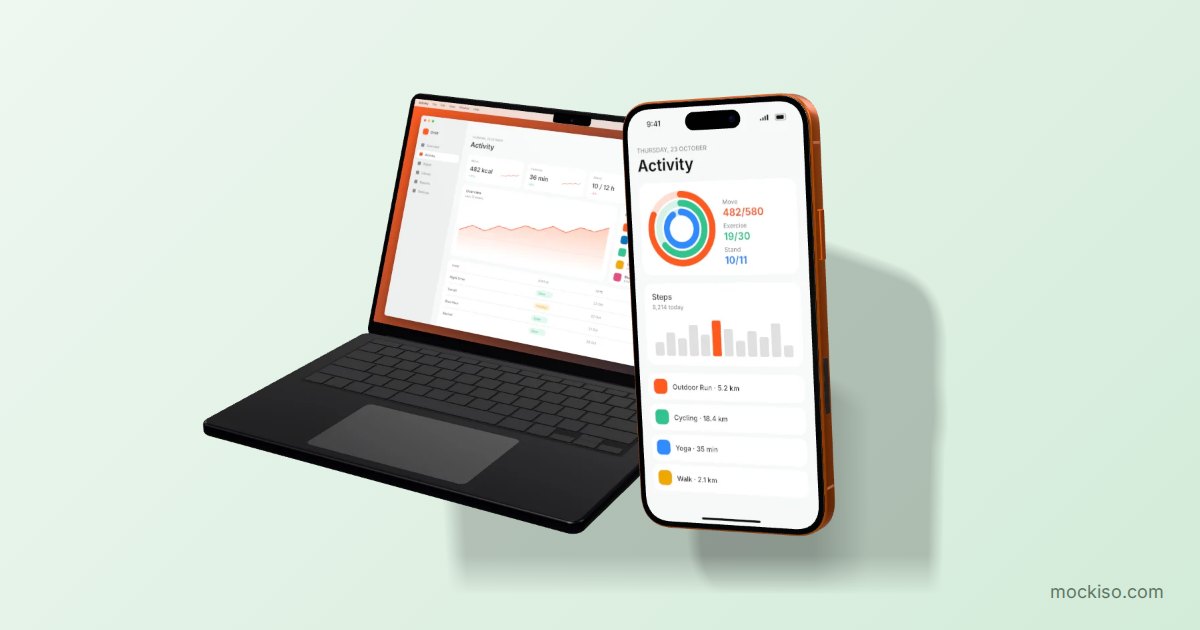
Yes, for most apps and SaaS products. Device mockups show the product in a realistic setting and make even a plain UI look like a finished product. A device mockup is an image of your real screenshot placed inside a rendered phone, tablet, laptop, or monitor, often at an angle and with lighting and shadows.
There are exceptions. Developer tools, APIs, and data-heavy dashboards often work better as full-bleed screenshots, where the detail matters more than the device frame. Our guide on when to use device mockups (and when plain screenshots win) goes through that decision in detail. A common compromise is a mockup on the hero slide and cropped, zoomed screenshots for the feature slides.
Whatever you choose, be consistent. Use the same backdrop, device color, typeface, and caption position on every slide so the gallery looks like one set and not six separate images.
How to make Product Hunt gallery images in mockiso
mockiso turns screenshots into 3D device mockups right in the browser, so you can make a full gallery in one session. Here's the workflow:
- Create a project. Sign up (new accounts get a 24-hour Pro trial with no card required), then click New project.
- Pick a device. Choose the hardware your users actually use, such as a MacBook Pro 14″ for a SaaS dashboard or an iPhone 17 Pro or Pixel 9 Pro for a mobile app. See the full list on the devices page.
- Add your screenshot. Click to upload, drag and drop, or paste with Ctrl/Cmd+V.
- Choose an angle. Use "hero left" or "hero right" for the first slide and "front" or "float" for feature slides, or drag to rotate freely. Fine-tune the lens (24–135 mm) and the yaw, pitch, and roll.
- Set lighting and backdrop. Adjust studio lighting, exposure, screen reflection, and soft shadow. Pick a solid color or gradient in your brand palette, or start from one of the 70 backdrop templates.
- Add a caption. Use the headline and subline fields for your slide copy.
- Use duo or trio layouts for cross-platform slides, with consecutive screenshots placed side by side.
- Export. Choose a landscape canvas preset, export as PNG or JPEG, and crop or resize to 1270×760 if the preset's ratio is different. Use 2× export for a crisp master, then check the final file is under 3MB. JPEG usually keeps photographic backdrops well under the limit.
Because projects autosave and keep your settings, you can swap in fresh screenshots the night before launch without rebuilding every slide. The free plan works for trying things out but adds a watermark. For launch assets, see Pro and Studio pricing, which removes the watermark and adds 2× export and batch ZIP downloads.
Common mistakes with Product Hunt launch images
- Tiny text. Captions that look fine on a 27-inch monitor become unreadable in the feed. Zoom your slide to about 25% and check that the headline still reads.
- Wrong aspect ratio. Uploading 16:9 slides into a 1270×760 frame causes cropping or awkward bars.
- Oversized files. Big PNGs with gradients or photos can go over the 3MB limit. Export as JPEG or compress before uploading.
- Busy GIFs. Quick cuts and flashing effects go against Product Hunt's guidance, and they don't play in the feed anyway.
- Inconsistent styling. Different backgrounds, devices, and fonts on each slide make the product look unfinished.
- Old screenshots. Make sure the UI in your gallery matches what visitors see when they sign up.
Reusing your gallery beyond launch day
A good gallery is also a ready-made set of marketing assets. The hero slide can become your landing-page header, your social announcement image, and the title slide of your pitch deck. Feature slides work well as carousel posts on LinkedIn or X.
The easiest approach is to reuse the design, not the exported file. Keep the same mockup project and export new canvas sizes for each channel instead of stretching one PNG to fit everywhere. If your product is also a mobile app, the same screenshots can go into store listings. Check our App Store screenshot sizes guide and the tips on writing screenshot captions so the messaging stays consistent.
Key takeaways
- Product Hunt recommends 1270×760 px for gallery images and a square 240×240 px thumbnail. Keep every image under 3MB.
- The gallery only appears once you upload at least two images. Four to six focused slides are usually enough.
- Order your slides like a mini pitch: outcome hero, core workflow, two features, proof, and offer.
- Use consistent device mockups, backdrops, and captions, and check that text is readable at small sizes.
- Animated thumbnails only play on hover, so the first frame needs to work as a still image.
Ready to build your launch gallery? Start your free mockiso trial and turn your screenshots into polished 3D device mockups in minutes, right in your browser.
Frequently asked questions
Can I use a GIF in my Product Hunt gallery?
Yes. Product Hunt accepts animated GIFs in both the gallery and the thumbnail, as long as each file is under 3MB. Avoid strobing effects, quick cuts, and unreadable text, because Product Hunt advises against them and may edit GIFs that use them.
Does Product Hunt accept video uploads?
Product Hunt only supports YouTube links for videos, not direct file uploads. The video must not be set to private, and you need to paste the full YouTube URL, because shortened links won't load.
How long can a Product Hunt tagline be?
The Launch Guide sets a maximum of 60 characters for the tagline. It appears next to your thumbnail in the feed, so lead with the benefit and skip filler words.
What time do Product Hunt launches go live?
According to Product Hunt's help center, the site runs on 24-hour periods in Pacific time, and posts go live at 12:01 AM. Have your gallery images finished and uploaded before then.
Should the maker comment include images?
It can. Product Hunt says images, videos, and GIFs are welcome in the maker's first comment, which appears right below the gallery. The Launch Guide notes that 70% of products that won Product of the Day, Week, or Month included a first comment from the maker.
Keep reading
App Store Screenshot Rejection: 12 Mistakes to Fix First
Most App Store screenshot rejections come from a few fixable mistakes: splash or login screens instead of the app in use, prices or "free" claims, other-platform imagery, real user data, and wrong sizes or transparent PNGs. Google Play adds bans on rankings, awards and promo text.
3D vs Flat Mockups: When Each Style Works Best
Use flat mockups when the interface has to be read: the first App Store screenshots, documentation and UI walkthroughs. Use 3D mockups when you need atmosphere and depth: hero images, launch posts, landing pages and later screenshots in the set.
App Store Screenshot Sizes: Every iPhone and iPad Spec
To submit an iPhone app, App Store Connect requires at least one screenshot for the 6.3-inch Dynamic Island class (1206 × 2622 or 1179 × 2556 px), plus a 13-inch iPad set (2064 × 2752 or 2048 × 2732 px) if your app runs on iPad. You can upload 1–10 JPEG or PNG images per size.