App Store Screenshot Sizes: Every iPhone and iPad Spec
in short
To submit an iPhone app, App Store Connect requires at least one screenshot for the 6.3-inch Dynamic Island class (1206 × 2622 or 1179 × 2556 px), plus a 13-inch iPad set (2064 × 2752 or 2048 × 2732 px) if your app runs on iPad. You can upload 1–10 JPEG or PNG images per size.
App Store screenshot sizes depend on the display class. To submit an iPhone app, Apple requires at least one screenshot for the iPhone with Dynamic Island (medium display), meaning 1206 × 2622 or 1179 × 2556 px in portrait. If your app runs on iPad, you also need at least one 13-inch iPad screenshot at 2064 × 2752 or 2048 × 2732 px. Every size takes between 1 and 10 images in JPEG or PNG, and none of them can have transparency.
This reference lists every current size from Apple's own App Store Connect screenshot specifications. That includes the new iPhone Duo sizes, which become mandatory for some apps in April 2027. Bookmark it and check it before every export.
Which App Store screenshot sizes are required in 2026?
Only two sets are strictly required: one iPhone set for the Dynamic Island (medium display) class and, for iPad apps, one 13-inch iPad set. Apple's specification page says: "To submit your app, you must provide screenshots for the following required display sizes," and then lists those two classes.
Everything else is optional. Apple explains that "if your app's user interface is consistent across multiple device sizes and localizations, you only need to provide screenshots for the highest required resolution. App Store Connect automatically scales them down for smaller device sizes."
A few platform-specific sets are required only if you ship on those platforms:
- Mac apps: one 16:10 size (see the table below).
- Apple TV apps: 1920 × 1080 or 3840 × 2160 px.
- Apple Vision Pro apps: 3840 × 2160 px.
- Apple Watch apps: one of the watch sizes, used consistently across all localizations.
An App Store screenshot is a static image uploaded in App Store Connect that appears in your product page gallery and, for the first few images, in search results. Because those first images show up in search, the size rules matter. The design matters just as much.
iPhone screenshot sizes for the App Store (table)
Apple groups iPhones by display class instead of by model. Each class accepts several resolutions, and the landscape version is the same pair of numbers swapped. The table below covers the current iPhone App Store screenshot dimensions in portrait.
| Display class | Example devices | Portrait sizes (px) | Status |
|---|---|---|---|
| Dynamic Island (large) | iPhone 18 Pro Max, 17 Pro Max, iPhone Air, 16 Pro Max, 16 Plus | 1320 × 2868, 1290 × 2796, 1260 × 2736 | Optional (falls back to Face ID large) |
| Face ID (large) | iPhone 14 Plus, 13 Pro Max, 11, XR | 1284 × 2778, 1242 × 2688 | Required if no Dynamic Island (large) set is provided |
| Dynamic Island (medium) | iPhone 18 Pro, 17 Pro, 17, 16 Pro, 16 | 1206 × 2622, 1179 × 2556 | Required |
| Face ID (medium) | Older Face ID iPhones | 1170 × 2532, 1125 × 2436, 1080 × 2340 | Optional (scaled) |
| Home Button (large) | 5.5″ Plus models | 1242 × 2208 | Optional (scaled) |
| Home Button (medium) | 4.7″ models | 750 × 1334 | Optional (scaled) |
Apple's page also lists legacy 4-inch and 3.5-inch sizes. Almost no team needs them today, because App Store Connect scales down from the larger sets.
Which iPhone size should you design at?
Design one master set at 1320 × 2868 px, the largest Dynamic Island class. Then export a second set at 1206 × 2622 px for the required medium class. The two have nearly the same aspect ratio, so the same layout works for both with only a resize. Uploading both means Apple never has to scale your images up or down for current flagship iPhones.
What is the iPad screenshot size for the App Store?
The required iPad screenshot size is the 13-inch class: 2064 × 2752 px or 2048 × 2732 px in portrait (2752 × 2064 or 2732 × 2048 in landscape). Apple lists iPad Pro (M5, M4), earlier iPad Pro generations and iPad Air (M4, M3, M2) in this class.
| iPad display | Portrait sizes (px) | Status |
|---|---|---|
| 13″ | 2064 × 2752, 2048 × 2732 | Required if the app runs on iPad |
| 12.9″ (iPad Pro 2nd gen) | 2048 × 2732 | Optional (scaled from 13″) |
| 11″ | 1488 × 2266, 1668 × 2420, 1668 × 2388, 1640 × 2360 | Optional (scaled from 13″) |
| 10.5″ | 1668 × 2224 | Optional (scaled from 12.9″) |
| 9.7″ | 1536 × 2048, 1536 × 2008, 768 × 1024, 768 × 1004 | Optional (scaled from 10.5″) |
iPad screenshots have a roughly 3:4 shape, which is much wider than the iPhone's 9:19.5. You can't simply stretch an iPhone layout onto an iPad canvas. Plan a separate composition, often in landscape, that shows the iPad's extra space doing real work.
What are the iPhone Duo screenshot sizes?
iPhone Duo screenshots use 1398 × 2034 px for the outer display and 2007 × 2853 px for the inner display, with the landscape versions swapped. Apple's specification page notes that "starting in April 2027, screenshots will be required for any app using the iOS 27.1 SDK or later."
There's also a visible upside. Apple says that when you submit iPhone Duo screenshots, "your App Store product page will display a badge to let people know your app is optimized for iPhone Duo." If your layout already adapts to the foldable form factor, it's worth uploading these sets before the deadline.
Mac, Apple Watch, Apple TV and Vision Pro sizes
Apple's other platforms each have short, fixed lists of App Store screenshot dimensions:
| Platform | Accepted sizes (px) | Notes |
|---|---|---|
| Mac | 1280 × 800, 1440 × 900, 2560 × 1600, 2880 × 1800 | 16:10, required for Mac apps |
| Apple Watch | 422 × 514, 410 × 502, 416 × 496, 396 × 484, 368 × 448, 312 × 390 | Pick one and use it in every localization |
| Apple TV | 1920 × 1080, 3840 × 2160 | Required for Apple TV apps |
| Apple Vision Pro | 3840 × 2160 | Required for Vision Pro apps |
For Apple Watch, 416 × 496 px matches Series 12, 11 and 10, and 422 × 514 px matches Ultra 4 and Ultra 3. Use the newest size your watch app supports.
What formats and rules must App Store screenshots follow?
App Store screenshots must be .jpeg, .jpg or .png files with no alpha channel or transparency, at an exact accepted size, with 1–10 images per display size. If the size is off by even a pixel, App Store Connect rejects the upload.
Content rules come from the App Review Guidelines. Guideline 2.3.3 says screenshots "should show the app in use, and not merely the title art, login page, or splash screen." Text and image overlays are allowed, which is why captioned screenshots and device frames are standard practice.
- Export without transparency. A transparent PNG, such as a device mockup on a transparent background, will be refused. Always flatten onto a solid color, gradient or image.
- Match the orientation per set. Portrait and landscape sizes are both accepted, but keep one set consistent so the gallery reads cleanly.
- Use Media Manager for overrides. According to Apple's upload guide, you select "View All Sizes in Media Manager" to manage scaled screenshots for other device sizes. Removing a screenshot also removes it from every size that uses a scaled version.
- Localize where it pays off. Pick a language from the pop-up menu in App Store Connect to upload localized sets. Otherwise, the primary language set is used.
For writing the overlay text, see our guide to App Store screenshot captions. If you also want motion in the gallery, read the App Store preview video specs.
How to export App Store screenshots in mockiso
A device mockup is an image that places your real app screenshot inside a rendered device frame, so shoppers see the UI in context. mockiso renders these 3D device mockups in the browser and exports them at store-ready sizes. A typical workflow for the required iPhone set:
- Create an account and start a new project. New accounts get a 24-hour Pro trial with no card required.
- Pick a device such as iPhone 17 Pro or iPhone 18 Pro Max, then upload or paste (Ctrl/Cmd+V) your raw screenshot.
- Choose an angle preset (front, hero left/right or float). Then tune the lens, lighting and soft shadow.
- Set a solid, gradient or image backdrop, not transparent, so the export has no alpha channel.
- Add an App Store style caption (headline and subline). Use the duo or trio layout if you want several devices with consecutive screenshots.
- Pick a store canvas size preset and export as PNG or JPEG. Before uploading, check that the final pixel dimensions match a row in the tables above.
The Free plan exports at 1× with a watermark. Pro adds 2× export up to 8192 px, no watermark and batch ZIP export of all screenshots, which is handy when you produce a 1320 × 2868 set and a 1206 × 2622 set side by side. See pricing for current limits.
Key takeaways
- The only required iPhone set is Dynamic Island (medium): 1206 × 2622 or 1179 × 2556 px in portrait.
- iPad apps also need a 13-inch set at 2064 × 2752 or 2048 × 2732 px. Smaller iPads are scaled from it.
- Design at 1320 × 2868 px for the largest iPhones, then also export at 1206 × 2622 px so neither class depends on scaling.
- Upload 1–10 JPEG or PNG screenshots per size, with no transparency, showing the app in use.
- iPhone Duo screenshots (1398 × 2034 outer, 2007 × 2853 inner) become required in April 2027 for apps built with the iOS 27.1 SDK or later.
Once your sizes are sorted, the hard part is making the first three screenshots worth a tap. Try mockiso free to turn raw screenshots into polished 3D device mockups at exact App Store sizes, right in your browser.
Frequently asked questions
Can I upload only 6.9-inch iPhone screenshots and skip the rest?
Not according to Apple's current specification page, which lists the Dynamic Island (medium display) class at 1206 × 2622 or 1179 × 2556 px as the required iPhone set. The safest approach is to upload a 1320 × 2868 set for the largest iPhones and a 1206 × 2622 set for the required class. Smaller classes can then be scaled automatically.
Why does App Store Connect say my screenshot has the wrong dimensions?
App Store Connect only accepts the exact pixel sizes listed for each display class, so even a one-pixel difference fails. Check the export's real pixel dimensions, not the design canvas at a different scale, and confirm the image has no alpha channel. A transparent PNG will also be rejected.
Do App Store screenshots have to be real screenshots of the app?
App Review Guideline 2.3.3 says screenshots should show the app in use, not just title art, a login page or a splash screen. Text and image overlays are allowed. That means device frames, captions and backgrounds are fine as long as the actual app UI is clearly shown.
Can I mix portrait and landscape screenshots?
Apple accepts both portrait and landscape versions of each size, which are the same dimensions swapped. Most apps keep one orientation per gallery so it scrolls cleanly. Games and iPad productivity apps often use landscape throughout.
Do I need separate screenshots for each language?
No. If your UI looks the same across localizations, App Store Connect can use your primary set. Localized screenshots with translated captions are uploaded per language through the language pop-up menu in App Store Connect and are worth it in your biggest markets.
Keep reading
App Store Screenshot Rejection: 12 Mistakes to Fix First
Most App Store screenshot rejections come from a few fixable mistakes: splash or login screens instead of the app in use, prices or "free" claims, other-platform imagery, real user data, and wrong sizes or transparent PNGs. Google Play adds bans on rankings, awards and promo text.
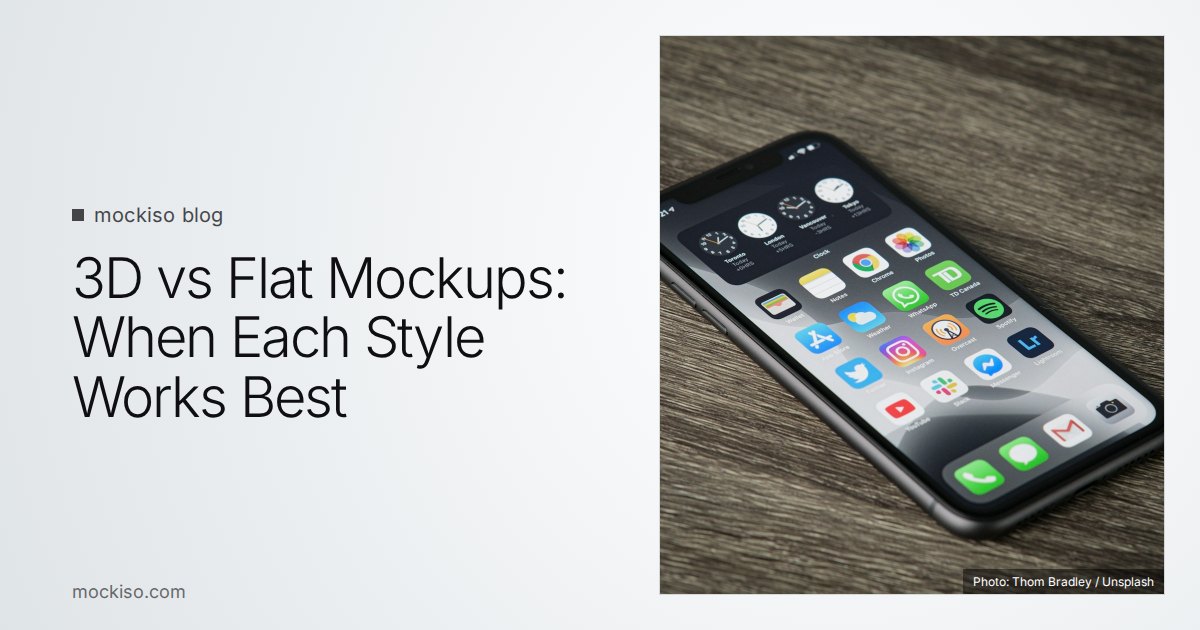
3D vs Flat Mockups: When Each Style Works Best
Use flat mockups when the interface has to be read: the first App Store screenshots, documentation and UI walkthroughs. Use 3D mockups when you need atmosphere and depth: hero images, launch posts, landing pages and later screenshots in the set.
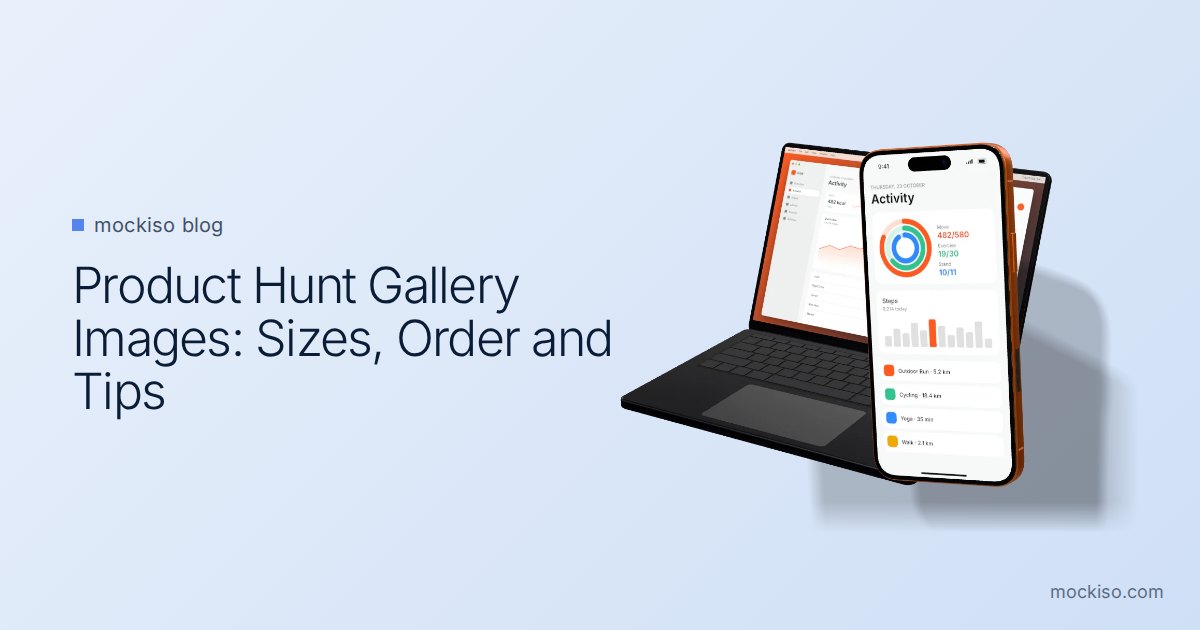
Product Hunt Gallery Images: Sizes, Order and Mockup Tips
Product Hunt recommends 1270×760 px gallery images, a square 240×240 thumbnail, and files under 3MB, and it needs at least two images before the gallery appears. Treat the gallery as a short visual story: lead with the outcome, show the product in device mockups, and keep every slide consistent.