3D vs Flat Mockups: When Each Style Works Best
in short
Use flat mockups when the interface has to be read: the first App Store screenshots, documentation and UI walkthroughs. Use 3D mockups when you need atmosphere and depth: hero images, launch posts, landing pages and later screenshots in the set.
In the 3D vs flat mockups question, the short answer is that flat mockups win when people need to read the interface, and 3D mockups win when you need depth, mood and attention. Most teams get the best results by mixing the two: flat for the first store screenshots and docs, angled 3D for hero images, launch graphics and social posts.
This guide compares both styles on readability, store rules, production effort and where each one performs best, then gives you a hybrid plan you can reuse.
What is the difference between 3D and flat mockups?
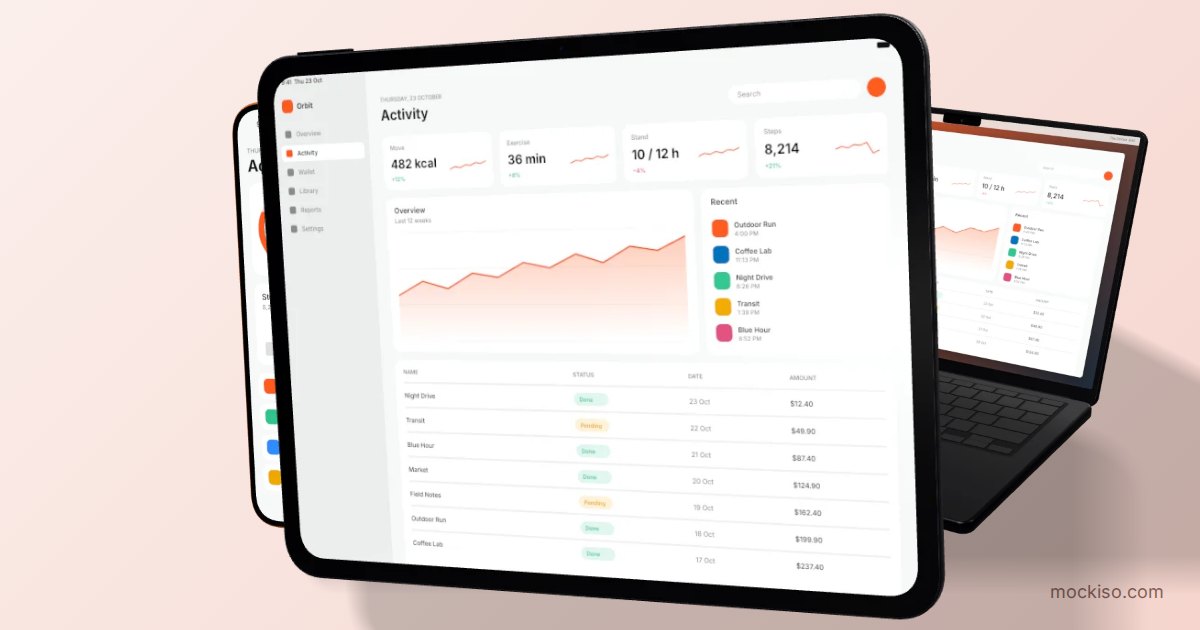
A flat mockup shows a screenshot inside a straight-on, two-dimensional device frame with no perspective. A 3D mockup renders the device as an object in space, with an angle, a camera lens, lighting, reflections and shadows.
Put more generally, a device mockup is an image that places a real app or website screenshot on a phone, tablet, laptop or other screen so viewers see the product in context. "Flat" and "3D" describe how that device is drawn:
- Flat device mockup: usually a vector or PNG frame (often built from Figma frames or plugins) with the screenshot sitting square inside it. Edges are crisp, nothing is distorted, and the screen takes up as much of the canvas as possible.
- 3D device mockup: a rendered model you can rotate, such as a phone tilted to the left or a laptop seen from slightly above. The screen is in perspective, so part of it recedes, and light and shadow make the device look physical.
There is also a middle ground: a 3D render shot from the front with a long lens. It looks almost flat but keeps realistic materials, edge highlights and a soft shadow.
3D vs flat mockups at a glance
The table below sums up how the two styles compare on the things that usually decide the choice.
| Criterion | Flat mockup | 3D mockup |
|---|---|---|
| UI readability | Highest: no perspective, full screen area | Lower: angled screens shrink and distort text |
| Visual impact | Clean, calm, can look generic | Strong depth, feels premium and tangible |
| Best placements | First store screenshots, docs, UI walkthroughs, changelogs | Hero banners, landing pages, launch posts, ads, press kits |
| Consistency across a set | Easy: same frame, same size | Needs a fixed angle, lens and lighting |
| Production effort | Low in Figma or any template | High in Blender or Photoshop; low in a browser 3D tool |
| Small-size behavior | Holds up in search results and thumbnails | Detail can turn to noise when scaled down |
| Store risk | Low | Low if the UI stays visible; higher if the device dominates |
Which mockup style is easier to read?
A flat mockup is easier to read because every pixel of the screenshot faces the viewer at full size. A 3D mockup trades some of that legibility for depth.
When you rotate a phone 25 to 35 degrees, the far side of the screen gets narrower and the text there gets smaller. That doesn't matter for a hero image where the point is "this app looks polished". It matters a lot when the screenshot has to explain a feature, show a price, or prove that a chart is easy to understand.
Store thumbnails make this worse. Search results and product pages show screenshots much smaller than you design them. A flat device mockup, or a plain screenshot, keeps the key UI recognizable at that size. A steep 3D angle can turn the same screen into a pleasant-looking gadget without a clear message.
Rule of thumb: if the screenshot only works when someone can read a label, go flat or use a gentle angle (under about 15 degrees of yaw).
Do App Store and Google Play rules favor one style?
Neither store bans 3D or flat mockups, but both stores require that your screenshots show the real app clearly, and Google Play actively discourages device imagery in screenshots.
Apple App Store
Apple's guideline 2.3.3 reference says screenshots "should show the app in use, and not merely the title art, login page, or splash screen." It also says App Review "will approve only those submissions where more than half of screenshots show the app in use", and warns: "Don't let overlays or marketing visuals crowd out your app." Apple also lists "Don't show only the hardware or an overlay with no app interface behind it" as something to avoid.
For mockups this means the device is fine as a frame, but the UI must stay the main subject. An angled 3D phone where the interface is a sliver at the edge is the riskiest option. App Store Connect accepts up to 10 screenshots per device size in JPEG or PNG, and the screenshot specifications state that images can't include alpha channels or transparency. So export on a solid or gradient backdrop, not a transparent one. For every exact pixel size, see our guide to App Store screenshot sizes.
Google Play
Google is stricter. The Google Play Console preview assets help page recommends using captured footage of the actual app, showing core features instead of marketing mockups, and lists device imagery among the elements to avoid because it can become outdated. For Wear OS apps it explicitly says not to position screenshots within device frames.
In practice, many Android listings use frameless or very lightly framed screenshots on Google Play, and save 3D device mockups for the Google Play feature graphic, the website and social channels.
When should you use 3D device mockups?
Use 3D device mockups when the goal is to attract attention and create a feeling of quality, not to explain a specific screen in detail.
- Landing page hero sections: an angled phone or a laptop with a light lean-back adds depth next to the headline.
- Launch posts and Product Hunt galleries: the first image competes in a busy feed. See our Product Hunt gallery images guide for order and sizes.
- Social media and ads: a 3D render with a soft shadow and a colored backdrop stands out more than a flat frame in a scrolling feed.
- Multi-device stories: a phone, tablet and laptop arranged together show that a product works everywhere, which is hard to fake with flat frames.
- Later App Store screenshots: once the first frames have explained the core value, a consistent tilt from screenshot four onward can add variety without hurting the message.
When is a flat device mockup the better choice?
A flat device mockup is the better choice whenever the interface itself is the message and people must read it quickly.
- The first 1 to 3 store screenshots: these appear in search results and need to explain the app at a glance.
- Help center articles and documentation: readers need to find the exact button you describe.
- Changelogs and feature announcements: the new UI element should be obvious, not hidden by perspective.
- Design case studies and portfolios: reviewers want to inspect spacing, type and detail.
- Watch apps and Google Play: small screens and store rules both favor clean, straight-on images.
If you are not sure a frame helps at all, read when to use device mockups (and when plain screenshots win) before you choose a style.
How much work does each style take?
Flat mockups are cheap to make, while classic 3D mockups used to be expensive. Browser-based 3D tools have closed most of that gap.
| Approach | Style | Typical effort | Trade-off |
|---|---|---|---|
| Figma frames or plugins | Flat | Minutes, stays inside your design file | Limited angles, lighting and realism |
| Photoshop smart object PSDs | Flat or fixed 3D | Find a template, replace the smart object, export | Angle is fixed by the template; one file per scene |
| Blender or other 3D software | 3D | Hours: models, materials, lighting, rendering | Full control, steep learning curve |
| Browser 3D mockup tool (e.g. mockiso) | 3D, including near-flat front views | Minutes: upload, choose angle, export | Less control than full 3D software |
If you already live in Figma and only need flat frames, a plugin is a fair choice. If you need several angles of the same screen, a 3D tool saves you from hunting for a new template for each one.
How to create both styles in mockiso
mockiso renders real 3D device models in your browser with WebGL, so you can produce a near-flat front view and an angled hero shot from the same project. Here is a simple workflow:
- Sign up and create a new project. Every new account gets a 24-hour Pro trial with no card required.
- Pick a device from the 40+ devices, such as iPhone 17 Pro, Pixel 9 Pro, iPad Pro 13″ or MacBook Pro 14″, and choose a color variant.
- Upload your screenshot by clicking, dragging and dropping, or pasting with Ctrl/Cmd+V.
- For a flat look: choose the front angle preset and set the lens toward the long end (up to 135 mm). A longer lens reduces visible perspective, so the screen reads almost like a flat frame while keeping realistic edges and a soft shadow.
- For a 3D look: switch to hero left, hero right, float or lean back, or drag to rotate freely, then fine-tune yaw, pitch and roll. A wider lens (for example 35 to 50 mm) adds drama.
- Adjust studio lighting, exposure, screen reflection and shadow. Keep the reflection low on screenshots that must stay readable.
- Set a solid color, gradient, image or one of the 70 backdrop templates, and add an optional App Store style headline and subline. For store uploads, avoid the transparent backdrop because App Store Connect rejects alpha channels.
- Use a duo or trio layout to show consecutive screenshots, then export PNG, JPEG or WebP using the canvas size presets. ZIP export of all angles makes it easy to deliver the flat and 3D versions together.
Plan limits and 2× export details are on the pricing page.
A hybrid plan that works for most apps
You rarely have to pick one style for everything. A practical split looks like this:
- App Store screenshots 1 to 3: flat or near-flat front view, large UI, short captions.
- App Store screenshots 4 to 10: the same front view, or one consistent gentle angle across all of them.
- Google Play phone screenshots: plain or very lightly framed screenshots that follow Google's guidance.
- Feature graphic, website hero, launch and social posts: angled 3D device mockups with lighting, shadow and a branded backdrop.
Whatever you choose, keep the device, angle logic, lens and lighting identical within a set. Mixing three random angles looks less polished than either style used consistently.
Key takeaways
- Flat mockups maximize readability; 3D mockups maximize depth and visual impact.
- Apple approves screenshot sets only when more than half show the app in use, so the UI must stay the main subject in any mockup style.
- Google Play recommends real app captures and lists device imagery among elements to avoid, so save 3D device frames for the feature graphic and off-store channels.
- Use flat or near-flat front views for the first 1 to 3 store screenshots and angled 3D renders for heroes, launches and ads.
- Keep one angle, lens and lighting setup per set, and export store images without transparency.
Conclusion
The 3D vs flat mockups debate isn't about which style is better overall. It's about matching the style to the job: flat when people need to read, 3D when you need them to stop scrolling. If you want both from one screenshot without opening Blender or hunting for PSD templates, start your free mockiso trial and render a front view and a hero angle in a few minutes.
Frequently asked questions
Are 3D mockups allowed in App Store screenshots?
Yes. Apple doesn't prohibit 3D device mockups, but its guideline 2.3.3 requires screenshots to show the app in use and warns against marketing visuals that crowd out the app. Keep the interface large and readable, and make sure more than half of your screenshots clearly show the app in use.
Should I put a device frame around Google Play screenshots?
Google Play Console guidance recommends captured footage of the actual app and lists device imagery among elements to avoid, because devices date quickly. For Wear OS apps, Google explicitly says not to place screenshots inside device frames. Many developers use plain screenshots on Google Play and keep device mockups for the feature graphic and website.
What camera angle keeps a 3D mockup readable?
A front view or a gentle rotation keeps text legible, while steep angles of 30 degrees or more shrink the far side of the screen. A longer lens, such as 85 to 135 mm, also reduces perspective distortion. Save dramatic angles for hero images where reading the UI isn't the goal.
Can I use a transparent background for store screenshots?
No. App Store Connect says screenshots can't include alpha channels or transparency, and Google Play asks for JPEG or 24-bit PNG without alpha. Use a transparent export only for web pages or design files, and export store images on a solid color, gradient or image backdrop.
Is a flat mockup the same as a plain screenshot?
No. A plain screenshot is just the captured screen, while a flat mockup places that screenshot inside a straight-on device frame. The frame adds context and polish but takes up canvas space, so a plain screenshot can show the UI slightly larger.
Keep reading
App Store Screenshot Trends 2026: 8 Styles Worth Using
The biggest App Store screenshot trends in 2026 are outcome-first hero frames, panoramic sets, angled 3D devices, frameless UI crops, dark mode frames, Liquid Glass UI, multi-device sets and bold color blocking. Use each one only where store rules allow it.
App Store Screenshot Rejection: 12 Mistakes to Fix First
Most App Store screenshot rejections come from a few fixable mistakes: splash or login screens instead of the app in use, prices or "free" claims, other-platform imagery, real user data, and wrong sizes or transparent PNGs. Google Play adds bans on rankings, awards and promo text.
Product Hunt Gallery Images: Sizes, Order and Mockup Tips
Product Hunt recommends 1270×760 px gallery images, a square 240×240 thumbnail, and files under 3MB, and it needs at least two images before the gallery appears. Treat the gallery as a short visual story: lead with the outcome, show the product in device mockups, and keep every slide consistent.